
"I got a good answer on ChatGPT, but I don't know how to show it to my colleagues..."
Do you have such worries? In fact, ChatGPT has a feature that allows you to easily share conversation content.
This article provides an easy-to-understand explanation of how to use "shared links", which are convenient for sharing with your team and customers.
table of contents
What you can do with shared links
People who receive the shared link can view your ChatGPT conversations. You can check the entire conversation history. However, don't worry, you cannot edit it. It can only be viewed.
For more information about ChatGPT, please also refer to the following articles:
[What is ChatGPT? ] Detailed introduction of functions, prices, and usage techniques
Notes on shared links
Handling of confidential information
Everyone can access shared links, so avoid sharing content that contains personal or sensitive information.
Update after sharing
If you update a thread after sharing it, the continued conversation will not be reflected in the existing shared link. A shared link acts as a fixed snapshot of the chat content at the time it was created. So if you update the conversation, you'll need to create a new shared link. Specifically, you can share the latest conversation content by deleting existing links and generating new ones.
Targets only web and iOS
This feature is currently only available on the web and iOS. An Android version will be released in the future. (As of November 18, 2024)
Link expiration date
At this time, there is no expiration date for shared links. Please note that this may change in the future.
Steps to create a shared link
You can easily create a shared link by following the steps below.
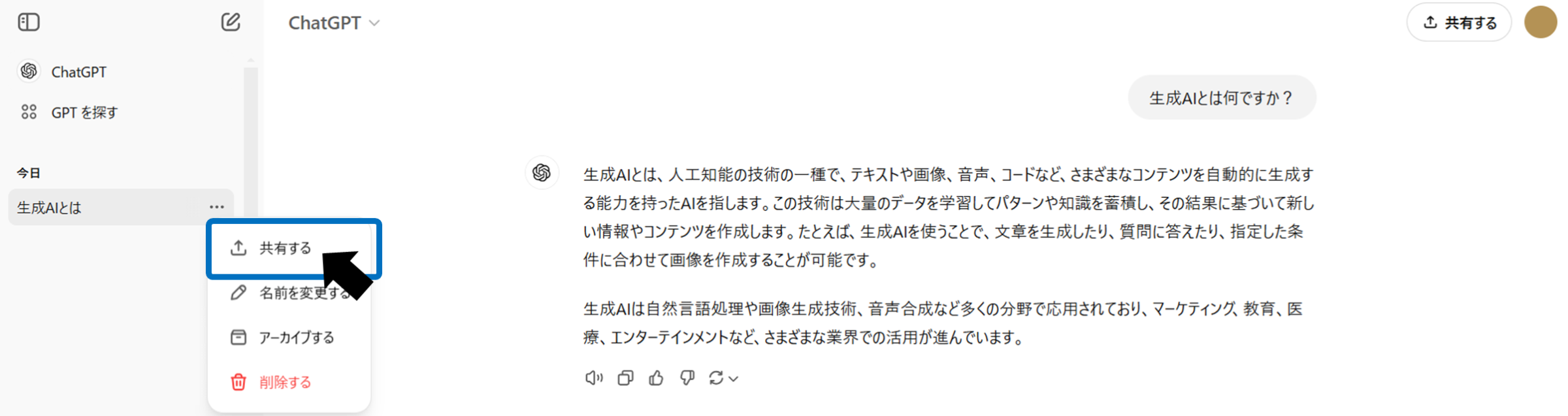
Click the "Share" button at the top left of the ChatGPT screen.

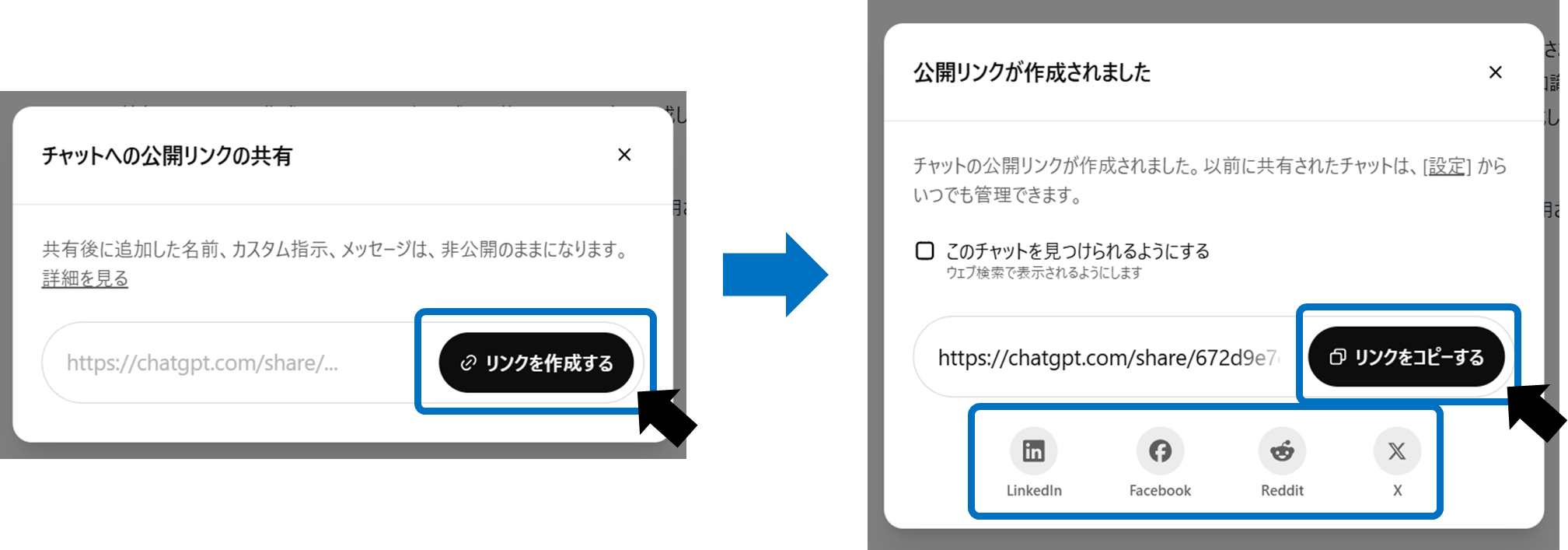
Click the "Create Link" button to create a link. Share the copied link via email, chat, social media, or any other method you like.
You can also share threads you have created in the past. Click the "..." button to the right of the thread you want to share, select "Share", and create a link.
summary
By using ChatGPT's shared link function, you can show the contents of your conversation to others by simply sending the URL.. This is especially useful when you want to teach your colleagues how to use it conveniently, when you want to share your proposals to customers, or when you want to introduce usage examples within your team. Why not start by sharing information with your closest colleagues? However, it is important to keep in mind some basic precautions, such as avoiding sharing highly confidential content such as personal information.