
The Gemini mobile app is used by many users as a digital assistant powered by Google's AI technology. However, problems may occur such as ``the app does not start'' or ``the app does not respond when called by voice.''
In this article, we will explain the causes and remedies in an easy-to-understand manner. Make sure you know the steps so you can calmly deal with the situation in case of an emergency.
table of contents
- table of contents
- Main causes of Gemini mobile app not starting or responding
- Inadequate default assistant settings
- Audio settings (“OK Google” or Voice Match) are disabled
- Lack of updates to apps and OS
- Temporary problems with network connection or device
- 4 steps to deal with Gemini mobile app not working
- 1. Check the "Default Assist App" in the Settings app
- 2. Check whether "OK Google" or Voice Match is enabled [For Android]
- 3. Update apps and OS
- 4. Try restarting the network connection/device
- Additional measures if the problem persists
- summary
Main causes of Gemini mobile app not starting or responding
If the Gemini app is not working properly, there are four possible causes:
Inadequate default assistant settings
To use Gemini on Android, set the "digital assistant app" to the Google app.Must have been.
Gemini may not start if this is set to another assistant (Google Assistant or a third-party app).
Audio settings (“OK Google” or Voice Match) are disabled
Gemini uses Google Assistant's voice recognition technology for some functions.
If "OK Google" is disabled or Voice Match settings are not appropriate, you may not be able to launch the app using voice commands.
Lack of updates to apps and OS
Gemini mobile app and OS (Android/iOS) are the latest versionsOtherwise, the app may not work properly.
[Example] Some Gemini features may not be available on Android versions below 10.
Temporary problems with network connection or device
Gemini runs on the cloud, sostable internet connectionis required.
Also, if your smartphone is running slow, the app may not respond.
4 steps to deal with Gemini mobile app not working
From here, we will introduce solutions that you should try when you actually encounter a situation where Gemini does not start or respond.
1. Check the "Default Assist App" in the Settings app
[For Android]
[setting] → [App] → [Default app]Open.
[Digital assistant app]Check the settings.
If "Google App" is not selected,[Default digital assistant app]Change to Google app.
[For iPhone/iPad]
After installing the Gemini app, check if the app is the latest version.
Google appGemini tabCheck whether it is displayed.
2. Check whether "OK Google" or Voice Match is enabled [For Android]
Gemini appOpen.
Tap your profile picture or initials at the top right of the screen.
[setting] → [Google Assistant feature in Gemini]Select.
[“OK Google” and Voice Match]Check if it is turned on.
Reset Voice Match if necessary.
【point】
Even if you can't use "OK Google",Tap the microphone icon for voice chatis.
3. Update apps and OS
Check for Gemini app updates
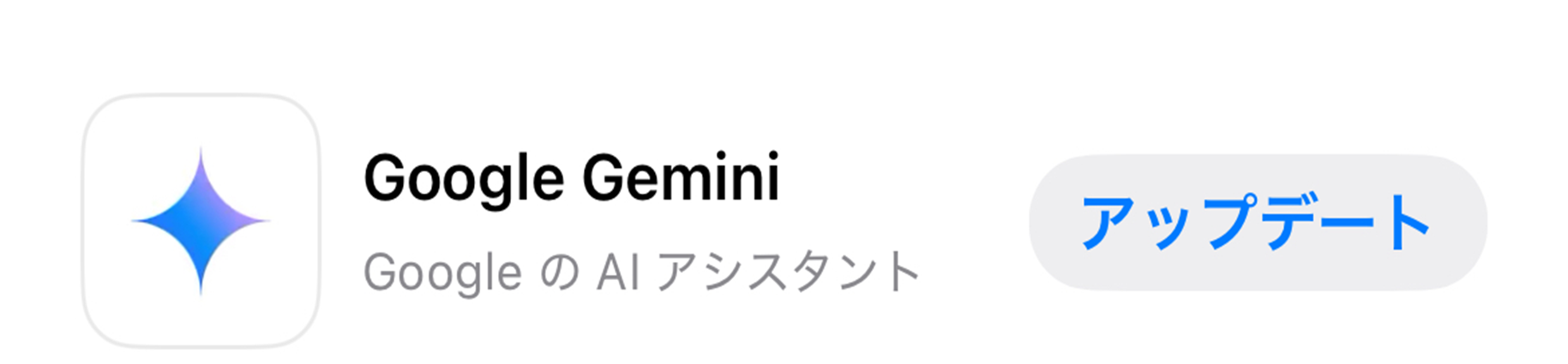
Open Google Play Store or App Store, search for "Gemini" and update to the latest version. If it says "update" as below, you need to update to the latest version.
Check the OS version of your smartphone
Android 10 and above(recommended),iOS 16 or higheris required. If it's an older version, try updating the OS.
4. Try restarting the network connection/device
Check Wi-Fi and mobile data communication
Turn off Wi-Fi and reconnect. If you are using mobile data communication, check the signal strength.
Restart your smartphone
To reset the temporary problem with your device, try turning it off and on again.
Additional measures if the problem persists
If the above methods do not resolve the issue, try the next method.
Reinstall Gemini app
Delete the app and reinstall the latest version.
Temporary switch to Google Assistant
If you want to use the assistant function in a hurry,Temporary fix by switching back to Google Assistantdo.
Leverage official support and community
Gemini official help pageSearch for similar cases.
summary
There are four main reasons why the Gemini mobile app does not start or respond: ``default assistant settings'', ``audio settings'', ``app and OS version'', and ``network environment''.
Calm down and check the following points in order.
Is the "default assist app" set to the Google app?
Are "OK Google" and Voice Match settings correct?
Are Gemini apps and OS up to date?
Have you tried connecting to the network or restarting your smartphone?
If that doesn't work, consider reinstalling the app or switching to Google Assistant. When configured correctly, Gemini becomes your go-to digital assistant! Please feel free to use it.